Scalar Quantities
Visualize scalar (real or integer)-valued data at the elements of a volume mesh.
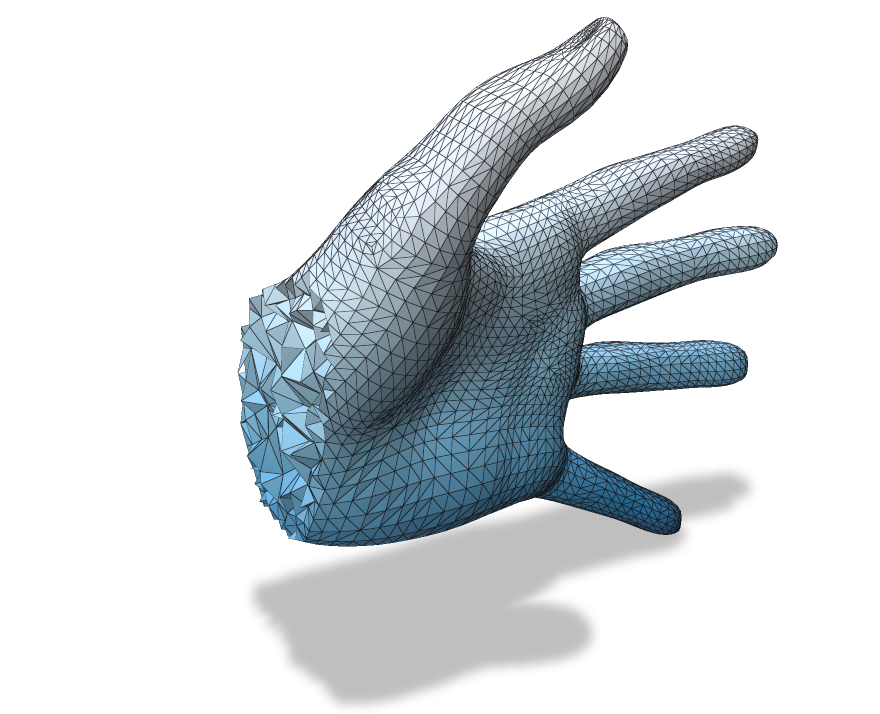
Example: showing a scalar on vertices (here just one of the spatial coordinate functions)
/* ... initialization, create mesh ... */

// Register the volume mesh with Polyscope
polyscope::registerTetMesh("my mesh", verts, tets);

// Add a scalar quantity
size_t nVerts = verts.rows();
std::vector<double> scalarV(nVerts);
for (size_t i = 0; i < nVerts; i++) {
  // use the x-coordinate of vertex position as a test function
  scalarV[i] = V(i,0);
}
auto scalarQ = polyscope::getVolumeMesh("my mesh")->addVertexScalarQuantity("scalar Q", scalarV);

// Set some options
scalarQ->setEnabled(true);       // initially enabled
scalarQ->setMapRange({-1., 1.}); // colormap from [-1,1]
scalarQ->setColorMap("blues");   // use a blue colormap

// Show the GUI
polyscope::show();
Add scalars to elements
VolumeMesh::addVertexScalarQuantity(std::string name, const T& data, DataType type = DataType::STANDARD)
Add a scalar quantity defined at the vertices of the mesh.
datais the array of scalars at vertices. The type should be adaptable to afloatscalar array; this includes may common types likestd::vector<float>andEigen::VectorXd. The length should be the number of vertices in the mesh.
VolumeMesh::addCellScalarQuantity(std::string name, const T& data, DataType type = DataType::STANDARD)
Add a scalar quantity defined at the cells of the mesh.
datais the array of scalars, with one value per cell. The type should be adaptable to afloatscalar array; this includes may common types likestd::vector<float>andEigen::VectorXd. The length should be the number of cell in the mesh.
Inspecting with slice planes
Slice planes have special functionality for volume mesh vertex values—they can inspect quantities on volume meshes and render them on the interior of the volume. See the slice plane documentation for details.
Categorical Scalars
Scalar quantities can also be used to visualize integer-valued labels such as categories, classes, segmentations, flags, etc.
Add the labels as a scalar quantity where the values just happen to be integers (each integer represents a particular class or label), and set DataType::CATEGORICAL. This will change the visualization to a different set of defaults, adjust some shading rules, and use a distinct color from the colormap for each label.
Color Bars
Each scalar quantity has an associated color map, which linearly maps scalar values to a spectrum of colors for visualization.
See colormaps for a listing of the available maps, and use quantity->setColorMap("cmap_name") to choose the map.
The colormap is always displayed with an inline colorbar in the structures panel, which also gives a histogram of the scalar values in your quantity.
The limits (vminmax) of the colormap range are given by the two numeric fields below the colored display. You can click and drag horizontally on these fields to adjust the map range, or ctrl-click (cmd-click) to enter arbitrary custom values.
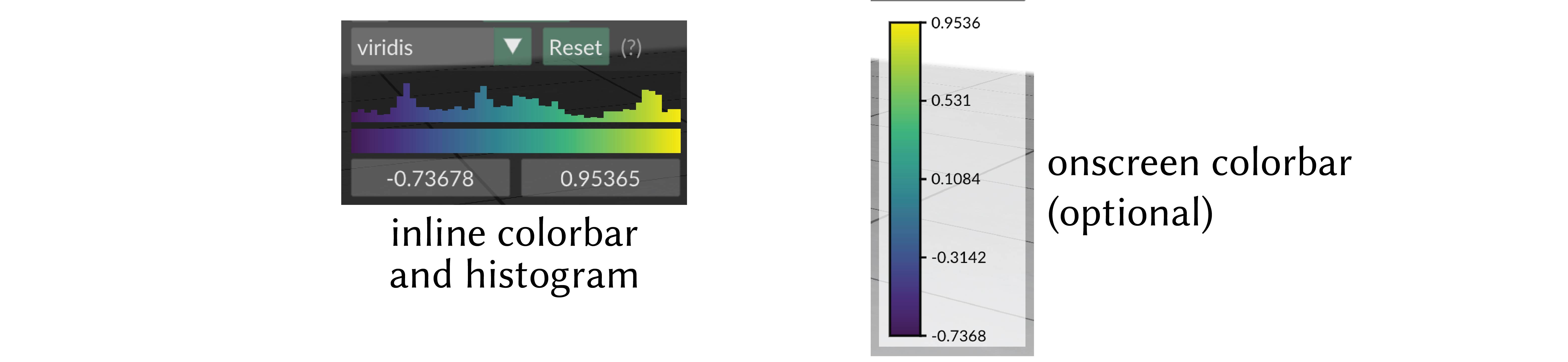
onscreen colorbar
Optionally an additional onscreen colorbar, which is more similar to the colorbars used in other plotting libraries, can be enabled with quantity->setOnscreenColorbarEnabled(true).
By default it is positioned automatically inline with the other UI elements, or it can be manually positioned with quantity->setOnscreenColorbarLocation(glm::vec2(xpos,ypos)).
You can even export this color map to an .svg file for creating figures, via the options menu, or with quantity->exportColorbarToSVG("filename.svg").
Scalar Quantity Options
These options and behaviors are available for all types of scalar quantities on any structure.
| Parameter | Meaning | Getter | Setter | Persistent? |
|---|---|---|---|---|
| enabled | is the quantity enabled? | bool isEnabled() |
setEnabled(bool newVal) |
yes |
| color map | the color map to use | std::string getColorMap() |
setColorMap(std::string newMap) |
yes |
| onscreen colorbar | additional onscreen colorbar | bool getOnscreenColorbarEnabled() |
setOnscreenColorbarEnabled(bool newVal) |
yes |
| onscreen colorbar location | where to put onscreen colorbar, (-1,-1) (default) means auto |
glm::vec2 getOnscreenColorbarLocation() |
setOnscreenColorbarLocation(glm::vec2 newVal) |
yes |
save colorbar to .svg file |
export colorbar to file | void exportColorbarToSVG(std::string filename) |
- | - |
| map range | the lower and upper limits used when mapping the data in to the color map | std::pair<double,double> getMapRange() |
setMapRange(std::pair<double,double>) and resetMapRange() |
no |
| isolines enabled | are isolines shaded (default=false) |
bool getIsolinesEnabled() |
setIsolinesEnabled(bool newVal) |
yes |
| isoline style | stripes or thin contour lines | IsolineStyle getIsolineStyle() |
setIsolineStyle(IsolineStyle newVal) |
yes |
| isoline period | period of isoline stripes, in data units | float getIsolinePeriod() |
setIsolinePeriod(float newVal) |
yes |
| isoline darkness | darkness of isoline stripes (default=0.7) |
float getIsolineDarkness() |
setIsolineDarkness(float newVal) |
yes |
| contour thickness | thickness of isoline contour lines (default=0.3) |
float getIsolineContourThickness() |
setIsolineContourThickness(float newVal) |
yes |