Simple Triangle Mesh
SimpleTriangleMesh is an alternate minimal-and-efficient structure for displaying triangle meshes. It only supports pure triangle meshes and a limited set of quantities and other features, but it is higher-performance and supports more general updates (including changing the number of vertices and faces without creating a new mesh).
The Surface Mesh structure is the primary way to display surface meshes in Polyscope for almost all use cases, and has a much larger feature set. Only use SimpleTriangleMesh if you particularly need fast performance, large meshes, or dynamic updates.
Example:
import numpy as np
import polyscope as ps
ps.init()

vertices = np.random.rand(100, 3)          # (V,3) float array of vertex positions
faces = np.random.randint(0, 100, (200,3)) # (F,3) int array of triangle indices

# Register the mesh
ps_mesh = ps.register_simple_triangle_mesh("my mesh", vertices, faces)

# Add a scalar quantity at vertices
vals = np.random.rand(100)
ps_mesh.add_scalar_quantity("rand vals", vals, defined_on='vertices', enabled=True)

ps.show()
Registering
register_simple_triangle_mesh(name, vertices, faces)
Add a new simple triangle mesh structure to Polyscope.
namestring, a name for the structureverticesan(V, 3)numpy float array of vertex positionsfacesan(F, 3)numpy integer array of triangle face indices, as 0-based indices into the vertex array
Only triangle faces are supported.
As with all structures, there are also get_simple_triangle_mesh(name), has_simple_triangle_mesh(name), and remove_simple_triangle_mesh(name).
Updating
SimpleTriangleMesh supports a wider range of updates than the standard SurfaceMesh. In particular, it is possible to change the number of vertices and faces on an existing structure without re-registering it.
SimpleTriangleMesh.update_vertex_positions(newPositions)
Update the vertex positions. The vertex count and face connectivity must remain the same.
newPositionsan(V, 3)numpy float array, with the same number of vertices as the current mesh.
SimpleTriangleMesh.update_mesh(vertices, faces)
Update both vertices and faces. Vertex and face counts may change.
verticesan(V, 3)numpy float array of new vertex positionsfacesan(F, 3)numpy integer array of new triangle face indices
Internally the buffers use amortized doubling, so capacity is only reallocated when the new size exceeds the current capacity. Call reserve_mesh_capacity() beforehand to avoid reallocations entirely.
SimpleTriangleMesh.reserve_mesh_capacity(n_verts, n_faces)
Pre-allocate buffer capacity for at least n_verts vertices and n_faces faces. Subsequent calls to update_mesh() that stay within this capacity will not trigger any memory reallocation.
This is useful when the mesh size fluctuates but has a known upper bound, and you want to avoid the overhead of reallocating buffers on every update.
Picking and Selection
“Picking” refers to selecting and inspecting elements by clicking on the object in the scene. See the section on picking for more info.
Additional information about a pick which hits the mesh can be retrieved from the PickResult.structure_data dictionary, which will contain:
element_type—"vertex"or"face"index— integer index of the clicked element
The selectable element types can be restricted with set_selection_mode(mode), where mode is one of:
"auto"— vertices and faces are both selectable (default)"vertices_only"— only vertices are selectable"faces_only"— only faces are selectable
Options
See structure management for options common to all structures such as enabling/disabling, transforms, and transparency.
| Parameter | Meaning | Getter | Setter | Persistent? |
|---|---|---|---|---|
| color | surface color | get_color() |
set_color(val) |
yes |
| back face policy | how back faces are rendered | get_back_face_policy() |
set_back_face_policy(val) |
yes |
| back face color | color used when policy is "custom" |
get_back_face_color() |
set_back_face_color(val) |
yes |
| material | material used for shading | get_material() |
set_material(val) |
yes |
| selection mode | which elements can be picked | get_selection_mode() |
set_selection_mode(val) |
yes |
The back face policy values are "identical", "different" (default), "custom", and "cull". See the Surface Mesh back face policies for details.
Scalar Quantities
Visualize scalar (real-valued) data at the vertices or faces of the mesh.
Example:
ps_mesh = ps.register_simple_triangle_mesh("my mesh", vertices, faces)

# vertex scalar (default)
vals_v = np.random.rand(ps_mesh.n_vertices())
q = ps_mesh.add_scalar_quantity("vert scalar", vals_v, defined_on='vertices', enabled=True)

# face scalar
vals_f = np.random.rand(ps_mesh.n_faces())
ps_mesh.add_scalar_quantity("face scalar", vals_f, defined_on='faces')
SimpleTriangleMesh.add_scalar_quantity(name, values, defined_on='vertices', datatype='standard', enabled=None, vminmax=None, cmap=None)
Add a scalar quantity to the mesh.
namestring, a name for the quantityvaluesa lengthNnumpy float array of scalar valuesdefined_onone of'vertices'or'faces'datatypeone of'standard','symmetric','magnitude'; see scalar quantities for details
This function also accepts optional keyword arguments to customize appearance and behavior.
Returns the quantity object, which can be used to call update_data().
Updating Scalar Data
Scalar quantity values can be updated in-place without removing and re-adding the quantity. The new data must have the same count as the original.
SimpleTriangleMeshVertexScalarQuantity.update_data(values)
Update the scalar values for a vertex scalar quantity. values must have the same length as the current vertex count.
SimpleTriangleMeshFaceScalarQuantity.update_data(values)
Update the scalar values for a face scalar quantity. values must have the same length as the current face count.
Categorical Scalars
Scalar quantities can also be used to visualize integer-valued labels such as categories, classes, segmentations, flags, etc.
Add the labels as a scalar quantity where the values just happen to be integers (each integer represents a particular class or label), and set datatype='categorical'. This will change the visualization to a different set of defaults, adjust some shading rules, and use a distinct color from the colormap for each label.
Color Bars
Each scalar quantity has an associated color map, which linearly maps scalar values to a spectrum of colors for visualization.
See colormaps for a listing of the available maps, and use add_scalar_quantity(..., cmap="cmap_name") to choose the map.
The colormap is always displayed with an inline colorbar in the structures panel, which also gives a histogram of the scalar values in your quantity.
The limits (vminmax) of the colormap range are given by the two numeric fields below the colored display. You can click and drag horizontally on these fields to adjust the map range, or ctrl-click (cmd-click) to enter arbitrary custom values.
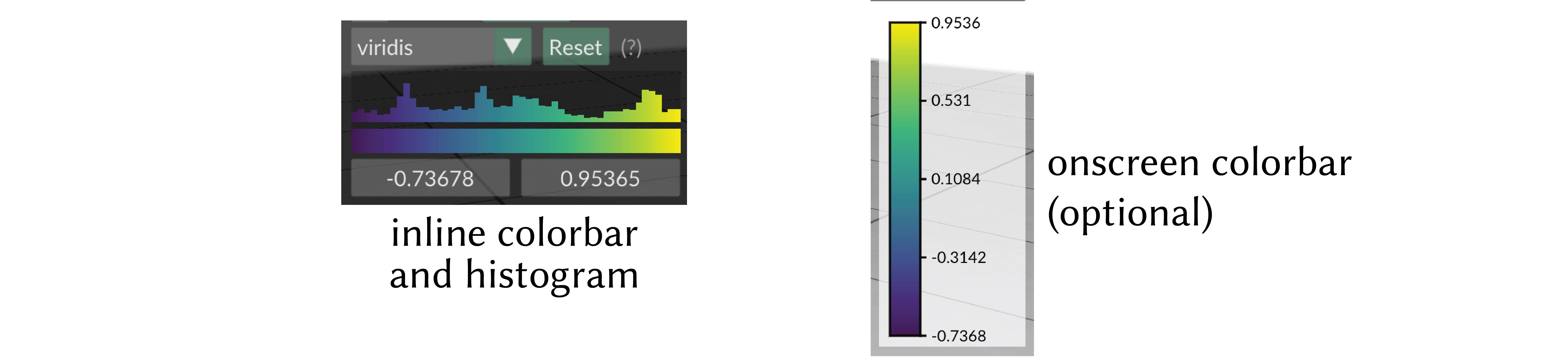
onscreen colorbar
Optionally an additional onscreen colorbar, which is more similar to the colorbars used in other plotting libraries, can be enabled with add_scalar_quantity(..., onscreen_colorbar_enabled=True).
By default it is positioned automatically inline with the other UI elements, or it can be manually positioned with add_scalar_quantity(..., onscreen_colorbar_location=(400., 400.)).
You can even export this color map to an .svg file for creating figures via the options menu.
Scalar Quantity Options
When adding a scalar quantity, the following keyword options can be set. These are available for all kinds of scalar quantities on all structures.
Keyword arguments:
enabledboolean, whether the quantity is initially enabled (note that generally only one quantitiy can be shown at a time; the most recent will be used)datatype, one of"standard","symmetric","magnitude", or"categorical", affects default colormap and map range, and the categorical policies mentioned abovevminmax, a 2-tuple of floats, specifying the min and max range for colormap limits; the default isNone, which computes the min and max of the data- colormap keywords:
cmap, which colormap to useonscreen_colorbar_enabledset toTrueto enable an additional traditional colormaponscreen_colorbar_locationset to screen coordinates like(400., 400.)to position the onscreen colorbar manually (default is automatic)
- isoline keywords (darker-shaded stripes showing isocontours of the scalar field):
isolines_enabledare isolines enabled (default:False)isoline_styleone ofstripe,'contour(default:stripe)isoline_periodhow wide should the darkend stripes be, in data units (default: dynamically estimated)isoline_period_relativeif true, interpret the width value as relative to the world coordinate length scale (default:False)isoline_darknesshow much darker should the alternating stripes be (default:0.7)isoline_contour_thicknesshow thick should the contour lines be (default:0.3)
If not specified, these optional parameters will assume a reasonable default value, or a persistent value if previously set.
Color Quantities
Visualize RGB color data at the vertices or faces of the mesh. Colors are specified as (N, 3) float arrays with values in [0, 1].
Example:
ps_mesh = ps.register_simple_triangle_mesh("my mesh", vertices, faces)

# vertex color (default)
cols_v = np.random.rand(ps_mesh.n_vertices(), 3)
q = ps_mesh.add_color_quantity("vert color", cols_v, defined_on='vertices', enabled=True)

# face color
cols_f = np.random.rand(ps_mesh.n_faces(), 3)
ps_mesh.add_color_quantity("face color", cols_f, defined_on='faces')
SimpleTriangleMesh.add_color_quantity(name, values, defined_on='vertices', enabled=None)
Add an RGB color quantity to the mesh.
namestring, a name for the quantityvaluesan(N, 3)numpy float array of RGB colors in[0, 1]defined_onone of'vertices'or'faces'
Returns the quantity object, which can be used to call update_data().
Updating Color Data
Color quantity values can be updated in-place without removing and re-adding the quantity. The new data must have the same count as the original.
SimpleTriangleMeshVertexColorQuantity.update_data(values)
Update the color values for a vertex color quantity. values must have shape (V, 3) matching the current vertex count.
SimpleTriangleMeshFaceColorQuantity.update_data(values)
Update the color values for a face color quantity. values must have shape (F, 3) matching the current face count.
Color Quantity Options
When adding a color quantity, the following keyword options can be set. These are available for all kinds of color quantities on all structures.
Keyword arguments:
enabledboolean, whether the quantity is initially enabled (note that generally only one quantitiy can be shown at a time; the most recent will be used)
If not specified, these optional parameters will assume a reasonable default value, or a persistent value if previously set.